Tool Installation
EDAcation depends on external tools (such as Yosys and Nextpnr) for most of its core functionality. One of EDAcation's main features is its ability to automatically install and manage these tools. This means that you don't have to worry about manually installing these tools or managing their versions, as EDAcation will take care of all of that for you.
EDAcation will automatically detect which tools are required to execute a specific task. By default, it will detect which tools are already installed on your system (available in PATH), and will only install the missing tools that are required for the task. You can also choose to let EDAcation manage all tools, in which case it will install all the tools it supports, regardless of whether they are already installed on your system or not. This behavior can be configured for your user or workspace using the edacation.toolProvider setting in VSCode.
In a web environment, EDAcation is unable to leverage any native tools whatsoever. Instead, it uses WebAssembly bundles provided by YoWASP. This is on a best-effort basis: not all tools that EDAcation supports are available in a WebAssembly version. Check the support matrix in the documentation of each task for more details on whether it is supported in a web environment.
Installation & Updates
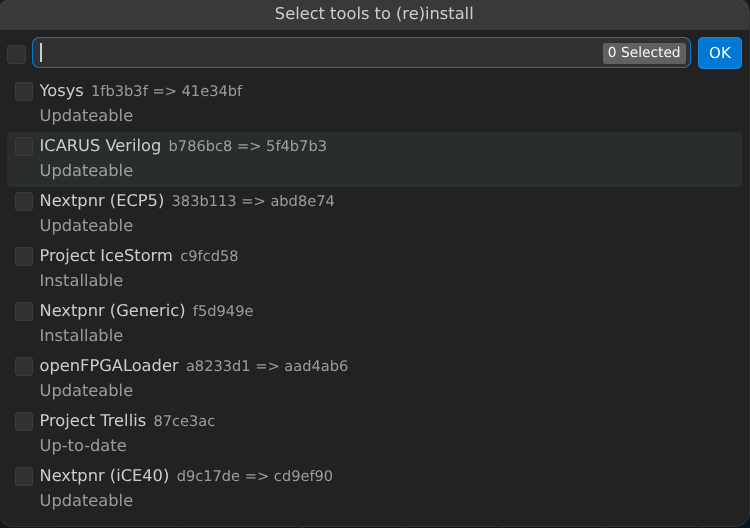
As mentioned before, EDAcation will automatically install any missing tools that are required to execute a task. However, you can also manually trigger the installation of a tool by using the EDAcation: Install or Update a Managed Tool command from the VSCode command palette. This will pop up a list of all the tools that EDAcation can install. Select one or more tools from the list, and EDAcation will install or update them to the latest version.
By default, EDAcation will check for tool updates every 7 days. This can be configured using the edacation.managedToolUpdateFrequency setting in VSCode. You can also manually trigger a check for updates by using the EDAcation: Check for Managed Tool Updates command from the command palette. If any updates are found, you will be prompted to install them.
Uninstallation
Tools will not be automatically uninstalled once they are installed. If you want to uninstall a tool that EDAcation manages to free up disk space, you can do so by using the EDAcation: Uninstall a Managed Tool command from the VSCode command palette. This will pop up a list of all the tools that EDAcation manages and that are currently installed. Select one or more tools from the list, and EDAcation will uninstall them from your system. Note that if you uninstall a tool that is required for a task, you will need to let EDAcation reinstall it before you can execute that task again.
Terminal Contributions
Every tool that EDAcation manages can provide one or more executable binaries. EDAcation automatically registers itself as a terminal contributor in VSCode, which allows it to add the binaries of the tools it manages to the PATH environment variable of any terminal that is opened in VSCode. This means that you can use the tools managed by EDAcation directly from any VSCode terminal.