Project Management
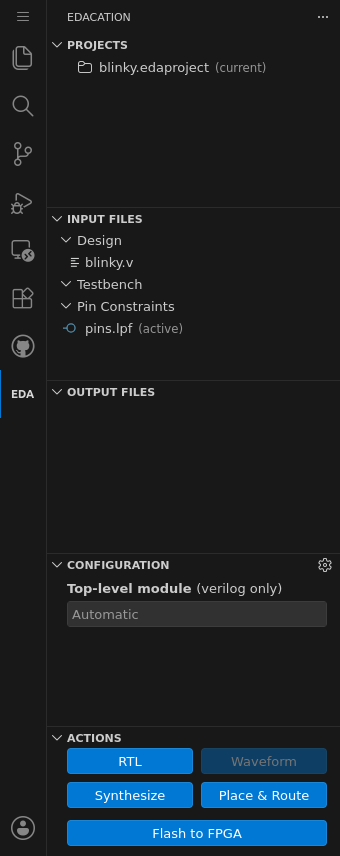
EDAcation adds a new "EDA" button to the left sidebar of VSCode. Clicking this button will open the main interface of EDAcation, from where you can manage your projects, input / output files, execute tasks and more.
Projects
The "Projects" sub-menu allows you to manage your active EDA projects. Every project is backed by a .edaproject file, which contains the full state of the project, including all input / output files, configuration and more. You can have multiple projects open at the same time, and switch between them by clicking on the desired project in the list.
You can create or open a project by clicking one of the two 'open' buttons at the top of the project sub-menu. To delete a project, click the cross or trash icon next to the project name when hovering over it.

Input Files
Input files are the data sources that your EDA projects use. You can add, edit, and delete input files from this section. There are three different types of input files:
- Design Files: These are the main files that describe your design, such as Verilog or VHDL files.
- Testbench Files: These files contain the testbenches for your design, which are used to verify its functionality. You can define as many testbenches as you want, but only one can be active at a time.
- Constraint Files: These files contain the pin constraints for your design, to ensure that the correct pins are used for the correct signals. You can define as many constraint files as you want, but only one can be active at a time.
EDAcation tries to automatically detect the type of input file based on its file name and extension when you add it to the project. You can manually adjust the type of an input file by dragging it to the correct category, or by clicking the two arrows next to the file name when hovering over it.
If you have more than one testbench or constraint file defined, you can select which one is currently active by clicking the checkmark icon next to the file name when hovering over it. The active testbench and constraint files will be used when executing tasks.
To remove an input file from the project, click the minus (-) icon next to the file name when hovering over it. This will not delete the file from your filesystem, but simply remove it from the project.

Output Files
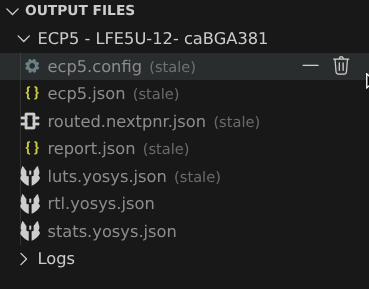
Output files are the results generated by executing tasks in your EDA project. You can view and manage your output files from this section. Output files are grouped by the project that generated them. There is also a separate 'logs' category for log files generated by EDAcation itself, such as task execution logs.
EDAcation has built-in support for previewing certain types of output files, such as LUT files (from synthesis), RTL files (from RTL generation), Nextpnr files (from place and route) and more. Note that some files may require third-party applications or VSCode extensions in order to be previewed correctly. You can use the EDAcation: Install recommended extensions command to automatically install the extensions we recommend for previewing these output files.
You may notice that some files will have the (stale) label next to their name. This label indicates that one of the input files that were used to generate this output file has been modified since the output file was generated. This means that the output file may be outdated and may not reflect the current state of the project. The label will disappear once you execute a task that regenerates the output file.
You can remove an output file from the project by clicking the minus (-) or trash icon next to the file name when hovering over it.
Configuration
The configuration section displays some commonly used configuration options for your EDA project. You can modify these options directly from the sidebar, and the changes will be saved to the project file. For more advanced configuration options, you can click the cogwheel icon to open the full project configuration file in a new editor tab.
Depending on your project's state, not all configuration options may be visible. For example, if you only have one target defined in your project, the "Current Target" option will not be shown.

Actions
The action buttons at the bottom of the sidebar allow you to quickly execute any task provided by EDAcation.
The available tasks will depend on the current state of your project, such as which input files you have defined and which target is currently active. For example, if you do not have any testbench files defined, the "Waveform" button will be grayed out.
Some tasks may depend on the results of other tasks in order to be able to execute. For example, the "Place and Route" task depends on the results of the "Synthesis" task, so if you have not executed synthesis yet, the place and route task may throw an error.
The task buttons always execute the task for the currently active project and target, using the currently active input files and configuration options.
