Installation
EDAcation is distributed as a VSCode extension. Use one of the following options:
-
Install from the Marketplace
-
Install manually
- Download the VSIX file here.
- Note that you will not be notified of any updates to the extension.
-
Run it in your browser
- Use vscode.dev, github.dev or any other VSCode-based online editor.
- Note that some features may have limited support in the web version.
You do not need to install any other tools. EDAcation will install them for you, or, if applicable, use the tools already installed on your system.
EDAcation is available in both the VSCode Marketplace as well as the Open VSX Registry. Only VSCode, VSCodium, vscode.dev and github.dev are officially supported. However, other editors will likely still work.
Recommended extensions
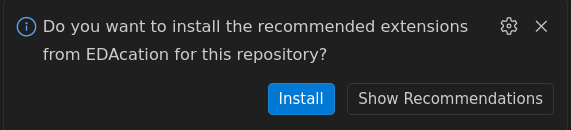
After installing EDAcation, you may receive the following pop-up. We recommend clicking 'Install' to enable additional features that will improve your experience. However, using these extensions is completely optional and core functionality will still work without them.
Workspace trust
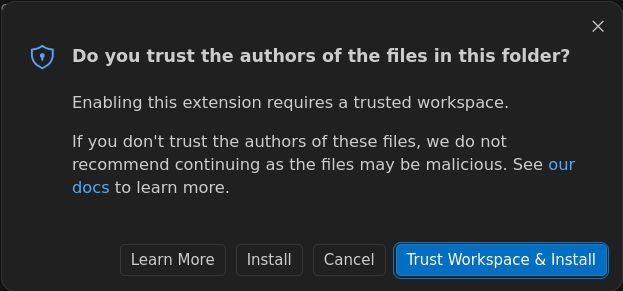
VSCode might show a warning when you first open a new project or directory. EDAcation does not work in a non-trusted workspace. When prompted, you must click 'trust' for EDAcation to be activated.
Sometimes, VSCode disables trusted mode without showing this pop-up. In this case, you can click the 'Workspace Trust' button at the bottom of your editor to show the dialog, from where you can choose to trust it.
After installation, continue to Example Project.